Guides
Record USB audio on Mac while keeping your audio interface
Use separate input and output devices or an Aggregate Device to record a USB instrument while keeping your speakers and headphones on your interface.
By EURA Editorial · · Updated
Keep your speakers plugged in
A USB instrument can add a recording source without making your audio interface redundant. On a Mac, the right route depends on whether your recording app lets you choose its input and output devices separately. Start there before rebuilding a working setup.
Try separate input and output devices first
Apple documents separate input and output selection in Logic Pro, GarageBand and MainStage. If your session only needs the USB instrument as its input, choose that device for recording and keep your interface as the output for speakers and headphones. Check the inputs your project needs: this route alone does not combine the instrument with your interface’s microphone inputs.
Combine inputs with an Aggregate Device
To access both devices together, connect them to the Mac and open Audio MIDI Setup in Applications > Utilities. Click the plus button, choose Create Aggregate Device, and tick Use for each device. Their order determines the channel numbering. Choose the most reliable clock source and enable Drift Correction for the other devices, following Apple’s separate guidance if you use word clock connections.
Select the Aggregate Device in your recording app. Keep Audio MIDI Setup open while assigning tracks: its channel numbers tell you which input belongs to which device. Route playback to the channels connected to your speakers. An Aggregate Device changes the device selected in the app, while keeping the physical interface in the recording setup.
Check the instrument’s exact USB mode
For OP-1 Field, Teenage Engineering’s release history lists multichannel USB audio in OS 1.6.0, dated 16 December 2025. Confirm the firmware and exposed channels on your own unit before assigning tracks. That release note establishes an OP-1 Field feature; it does not certify your complete computer and recording setup.

Teenage Engineering
Teenage Engineering OP-1 Field
View product →
Record a short check before the full take
Play one source at a time, record a short passage and listen back with live monitoring muted. Check that each track contains the intended source and that stereo pairs land where you expect. If you also need a microphone on your interface, test it in the same session. This is a suggested routing check, not a report of a hands-on compatibility test.
Related productsupport.apple.comCreate an Aggregate Device to combine multiple audio devices - Apple SupportWith an Aggregate Device, you can use audio inputs and outputs from different devices at the same time with Logic Pro, GarageBand, MainStage, and most other Core Audio-compliant applications./en-us/102171Open source in a new tabRelated productteenage.engineeringdownloads OP–1 field/downloads/op-1/fieldOpen source in a new tabMore instruments that send separate parts over USB
OP-XY offers stereo, custom two-channel and configurable eight-channel USB output modes. Choose the mode and routing before assigning DAW inputs. Eight audio channels do not mean eight stereo stems.

Teenage Engineering
Teenage Engineering OP-XY
View product →
 teenage.engineeringOP–XY guide: com/guides/op-xy/comOpen source in a new tab
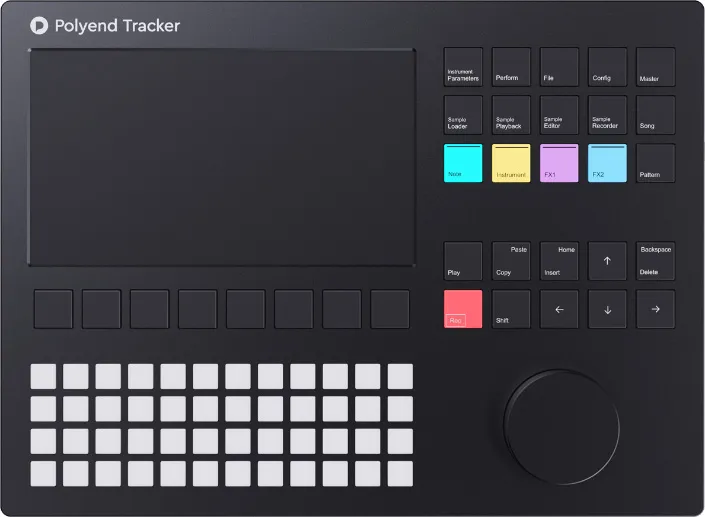
Tracker+ sends 14 USB audio tracks to the DAW. Polyend describes a master, eight stereo sample tracks, one track per synth engine, and delay and reverb sends. Use the Tracker+ documentation rather than assuming the original Tracker has this feature.
Polyend
Polyend Tracker+
View product →
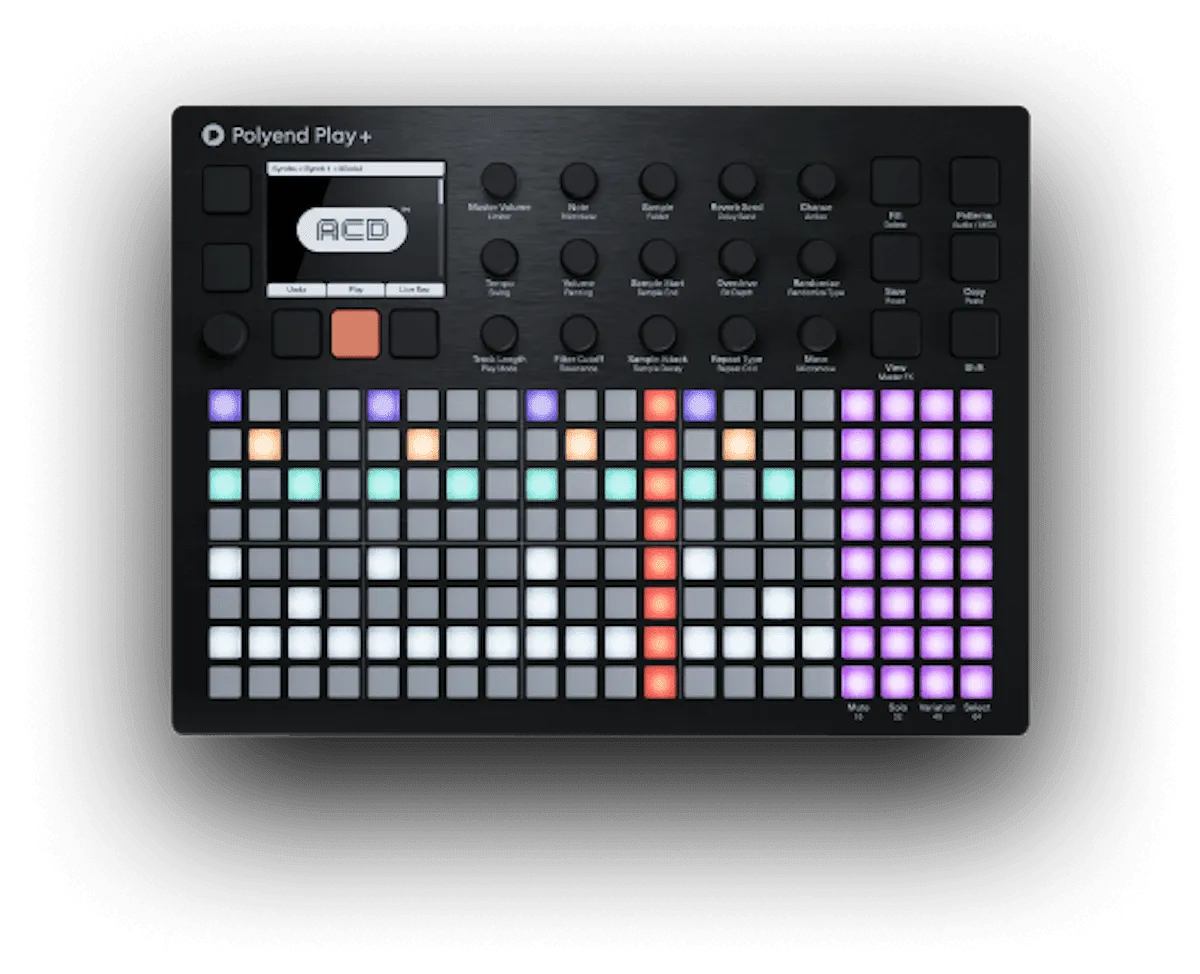
Related productbackstage.polyend.comPolyend Tracker+ USB audio announcement/t/announcing-tracker/11031Open source in a new tabPlay+ offers 14 stereo USB outputs according to Polyend. Keep the Plus model distinct from the original Play, and check the channel map before recording individual parts.
Polyend
Polyend Play+
View product →
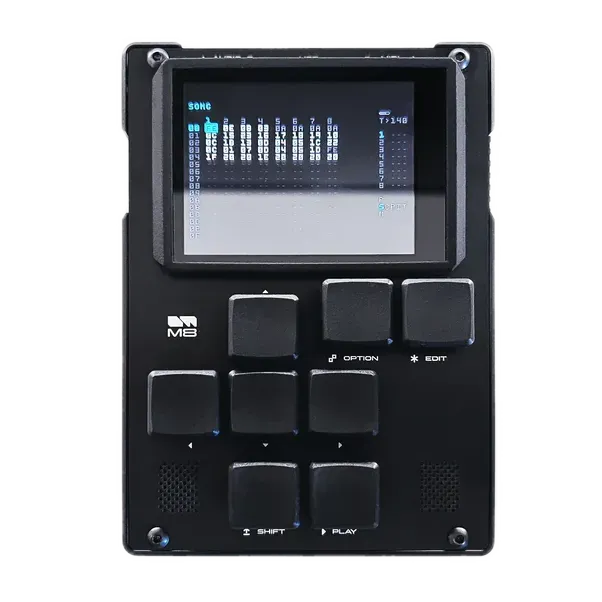
Related productbackstage.polyend.comPolyend Play+ USB audio announcement/t/introducing-play/6508Open source in a new tabM8 firmware 6.5.0 introduced multichannel USB audio on 6 January 2026. In System Settings, select USB AUDIO MODE: channels 1–2 carry the main mix, 3–18 the tracks, 19–20 ModFX, 21–22 delay and 23–24 reverb. Check your installed firmware; this guide does not infer a Model:02 hardware generation from EURA’s generic M8 listing.
Dirtywave
Dirtywave M8
View product →
Related productraw.githubusercontent.comDirtywave M8 multichannel USB firmware notes/Dirtywave/M8Firmware/main/changelog.txtOpen source in a new tab